Make and apply New Styles
Guides users through the creation of a Paragraph or Character Style based upon a text selection.
In the case of professional print design the effective use of Paragraph and Character styles provides consistency, flexibility and speed.
This is also true for digital exports but additionally text styles are essential for providing the accessibility requirements including heading hierarchy, language and semantic meaning.
A Paragraph Style provides the main text formatting for the document e.g. body first or h3 subhead whereas the Character Style provides a difference to the underlying Paragraph Style such as for italicisation or a language shift.
When faced with an InDesign document containing only local formatting (e.g. applied from the Control panel) or style overrides (i.e. additional formatting applied to a style) this tool quickly resolves this issue.
To make and apply new styles:
- Select text with InDesign Text tool
- Choose GreenLight Tools menu > Type Tools
- Click GreenLight Type Tools > Make and apply styles
- In the following dialog, choose whether to define a Character Style or Paragraph Style

A list of suggested styles are offered from the applied Design System or Theme. Learn more about this in the Implementing a Design System tutorial or choose to Create new custom paragraph style and enter a name of your choice.

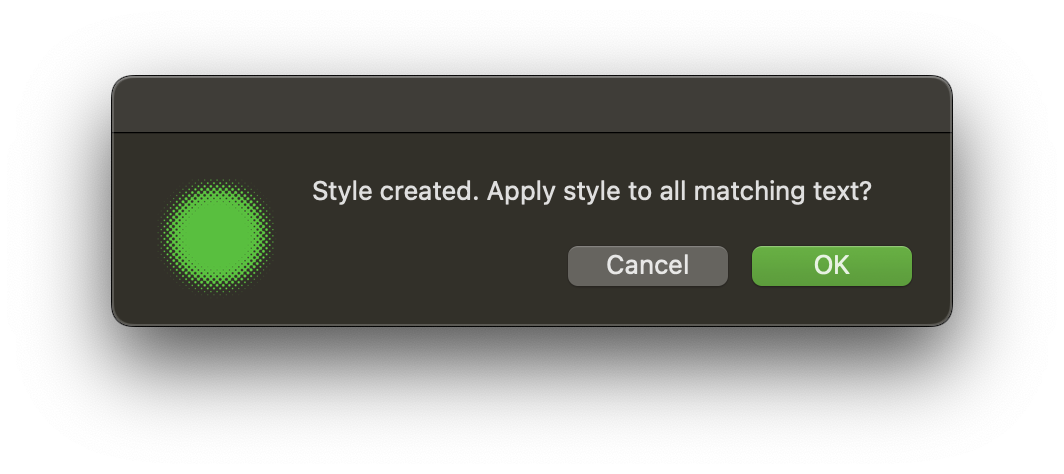
With the style now created, click OK to apply the style to all matchng text throughout the document. Or cancel to apply manually or with the Analyse character style tags tool.