


No RGB colours
This check reports when the colour space used in any object or placed image is set to RGB.
The RGB (Red, Green, Blue) colour space in intended for screen representation of colour and can be applied to pixel images, vector images, InDesign objects and text.
When RGB is to be used in commercial printing it is typically converted to the ink colours CMYK (Cyan, Magenta, Yellow and Black) either before placing or on export.
The actual colour that RGB or CMYK describes depends on many variables such as the type and setup of screen when viewing RGB and the ink, paper and light source used when viewing CMYK.
Unless working in a colour managed workflow the conversion from RGB to CMYK can cause unexpected and disappointing results. To prevent this, one approach is to ensure all images are generated or converted to CMYK in the same way before they reach the InDesign page.
This GreenLight check will support this workflow method by flagging any object or placed image that uses RGB.
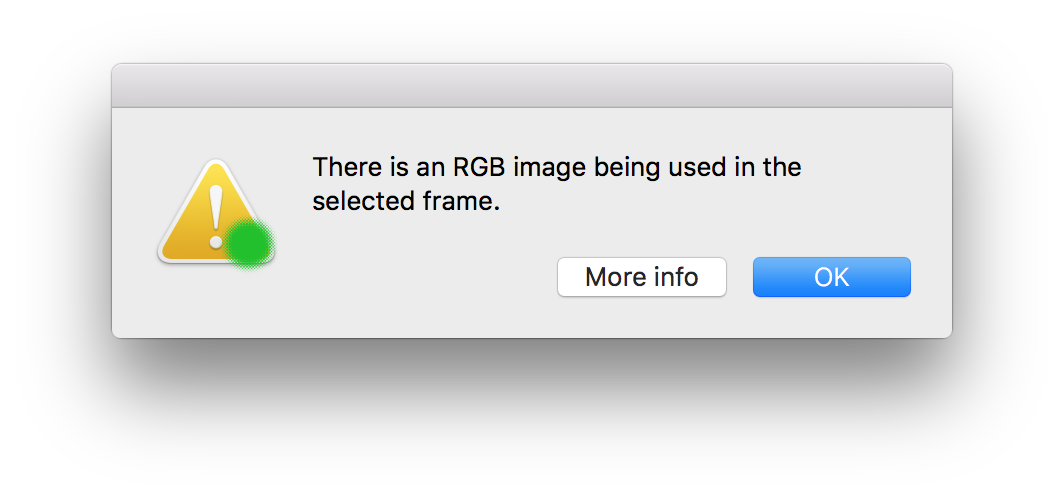
Fix this problem by using CMYK images or using CMYK swatches for InDesign objects and text.
Viewing Colour Spaces in the InDesign Links panel
It is possible to add a Colour Space column to the Links Panel:
- Choose the InDesign Links panel (InDesign Window menu > Links)
- Choose Links Panel menu > Panel Options…
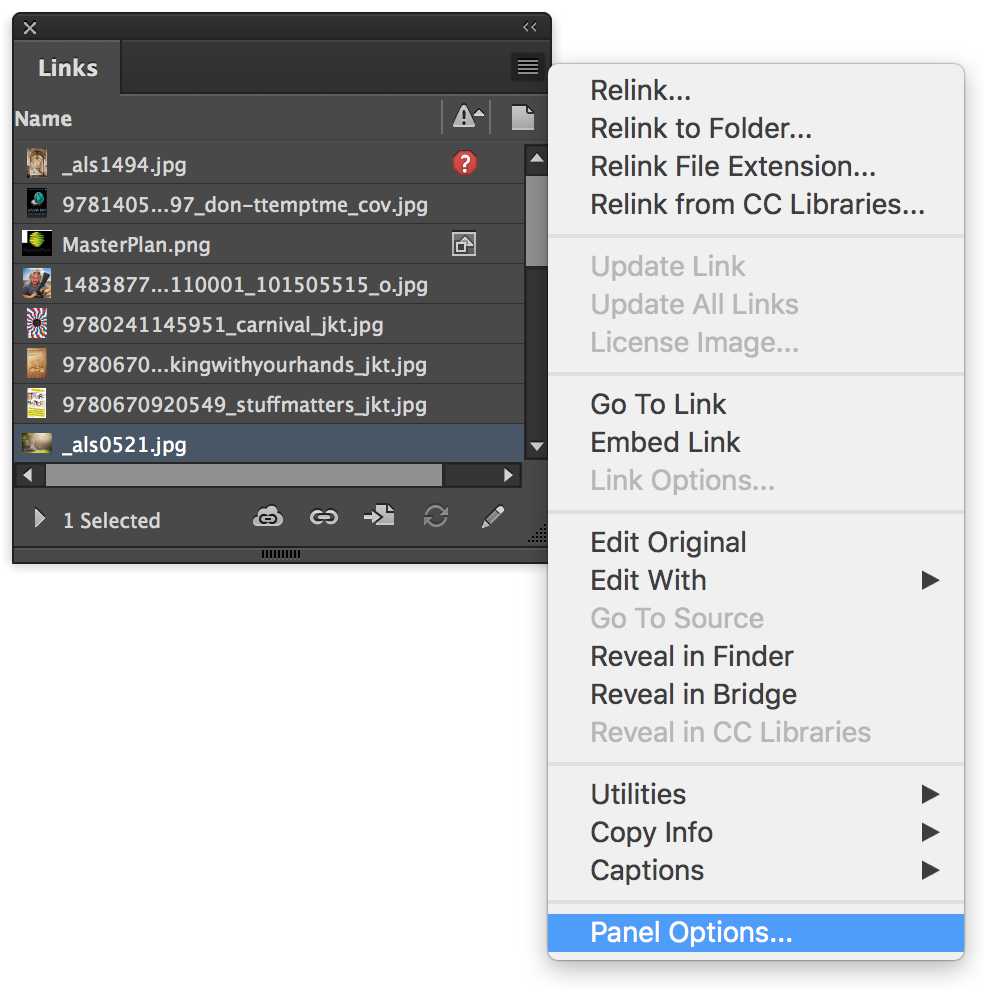
- Click the checkbox for Colour Space under the Show Column heading
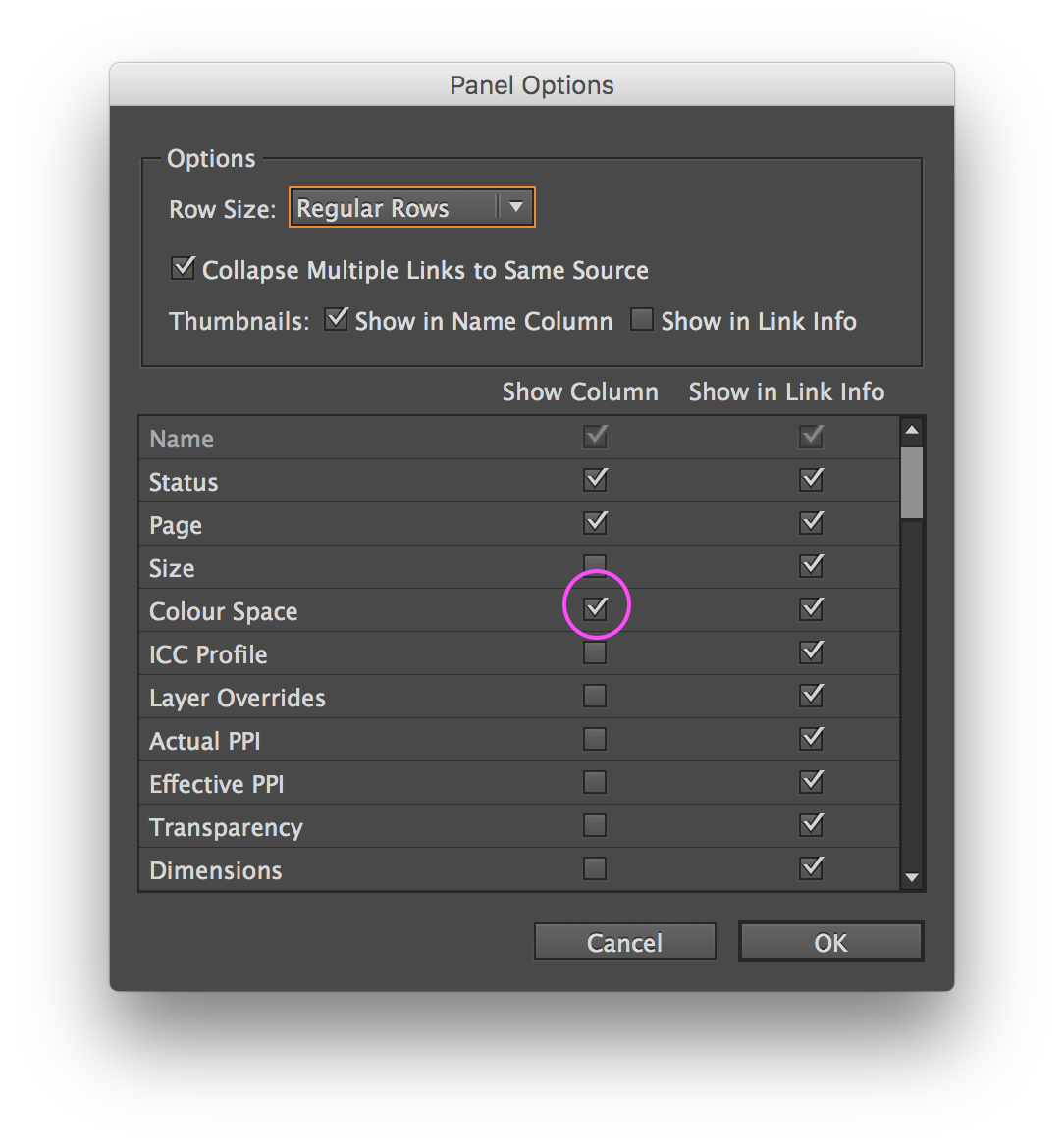
- Click OK
In the Links panel a new column appears indicating the Colour Space of pixel images. Adjust the widths of the columns to see all the information if necessary.

NB: Placed PDFs and Illustrator images cannot show a colour space in the Links panel as they may contain multiple colour spaces. However this GreenLight check will reveal if these placed image types contain any RGB components.
More from Adobe help on Working with Graphics Links in InDesign


