


‘Links’ are made to the original files of images that have been placed into the InDesign document; they might also, less commonly, be text files.
InDesign can cope with links from anywhere on your computer; for example, your Desktop, your Dropbox or Google Drives, or on remote file servers, and this approach is fine while the document is in progress. However, once the document is ready for output, you should gather together all links items into a single folder within the same folder as the InDesign document, otherwise images will almost certainly become unlinked or get lost, preventing reuse in the future.

You can fix the problem above by moving the linked files and choosing to relink in InDesign’s Links panel menu.

Alternatively, it is possible to Package a document (File menu > Package…). This brings together copies of all linked items in a 'Links' folder together with a copy of the InDesign document into a new folder with the document’s name. You can also choose whether to create a PDF and IDML file, (which can be opened by previous versions of InDesign).
‘Links’ are made to the original files of images that have been placed into the InDesign document; they might also, less commonly, be text files.
External links can instead be saved inside the InDesign document through ‘embedding’. An icon

is shown under the Status column in the Links panel (InDesign Window menu > Links)

Advantages of embedding links:
Disadvantages of embedding links:
To embed an image, select its name in the Links panel, and from the panel menu choose Embed Link.

Adobe links and embedded graphics help
InDesign's default method for working with images is that ‘links’ are made to the original files that have been placed into the document. Less commonly, this might also apply to text files.
External links can instead be saved inside the InDesign document through ‘embedding’. An icon
is shown under the Status column in the Links panel (InDesign Window menu > Links)
Advantages of embedding links:
Disadvantages of embedding links:
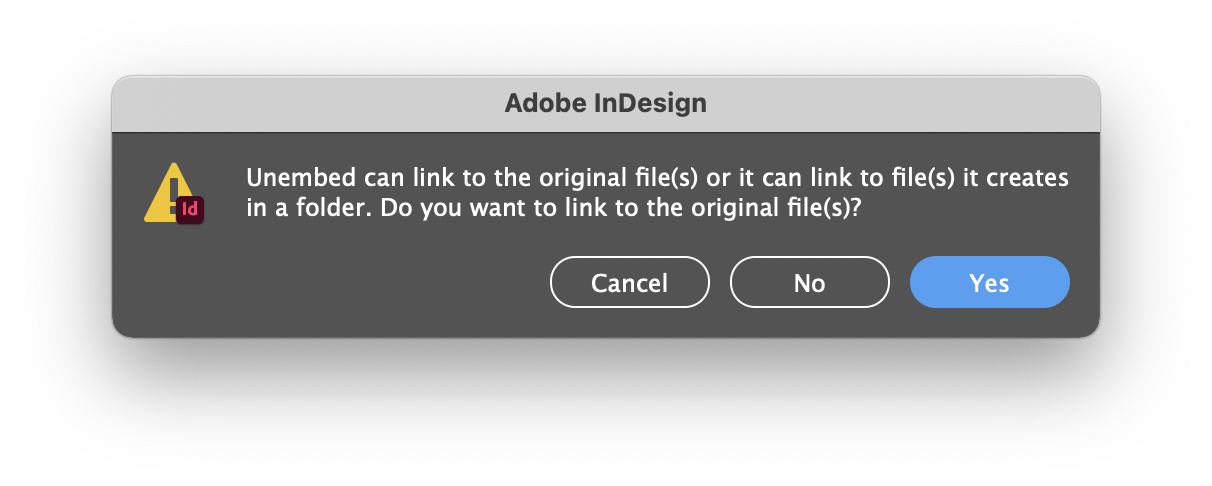
Fix the problem of changing an embedded image into a linked image by selecting its name in the InDesign Links panel and from the panel menu choosing Umembed Link.

You can then choose whether to link back to the original file or create a new copy to link to instead
Adobe links and embedded graphics help
‘Links’ are made to the original files of images that have been placed into the InDesign document; they might also, less commonly, be text files.
Icons are shown under the Status column in the Links Panel. (InDesign Window menu > Links) to indicate a problem.

= Missing Link
Links can go missing if renamed, moved or your computer is disconnected from them if held remotely e.g. on a file server.

= Modified Link
Links become modified if edited outside of InDesign e.g. resized or colour adjusted in Photoshop.
Fix this problem by selecting the link(s) in InDesign's Links panel and from the panel menu choosing Update in the case of a Modified image or Relink if missing.
Adobe links and embedded graphics help
The RGB (Red, Green, Blue) colour space in intended for screen representation of colour and can be applied to pixel images, vector images, InDesign objects and text.
When RGB is to be used in commercial printing it is typically converted to the ink colours CMYK (Cyan, Magenta, Yellow and Black) either before placing or on export.
The actual colour that RGB or CMYK describes depends on many variables such as the type and setup of screen when viewing RGB and the ink, paper and light source used when viewing CMYK.
Unless working in a colour managed workflow the conversion from RGB to CMYK can cause unexpected and disappointing results. To prevent this, one approach is to ensure all images are generated or converted to CMYK in the same way before they reach the InDesign page.
This GreenLight check will support this workflow method by flagging placed image that uses RGB.
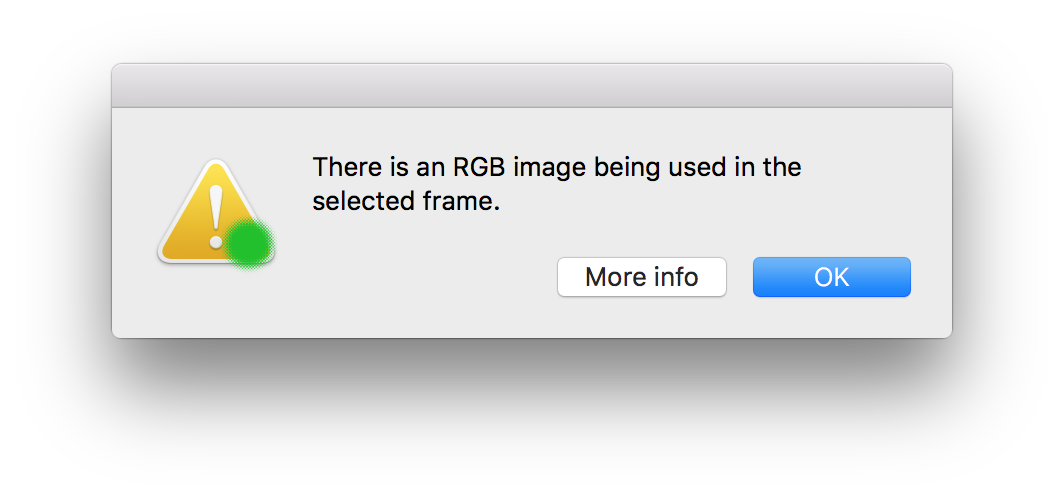
Fix this problem by using CMYK images in InDesign.
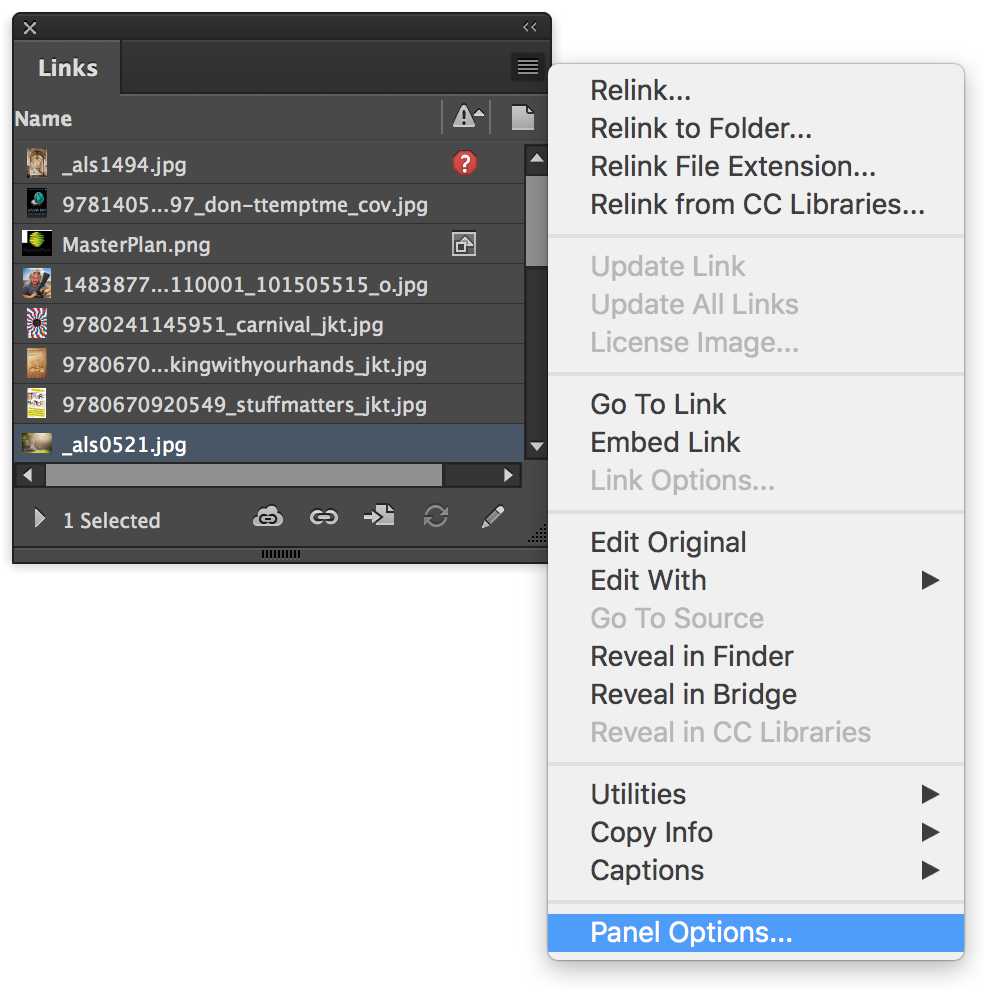
It is possible to add a Colour Space column to the Links Panel:
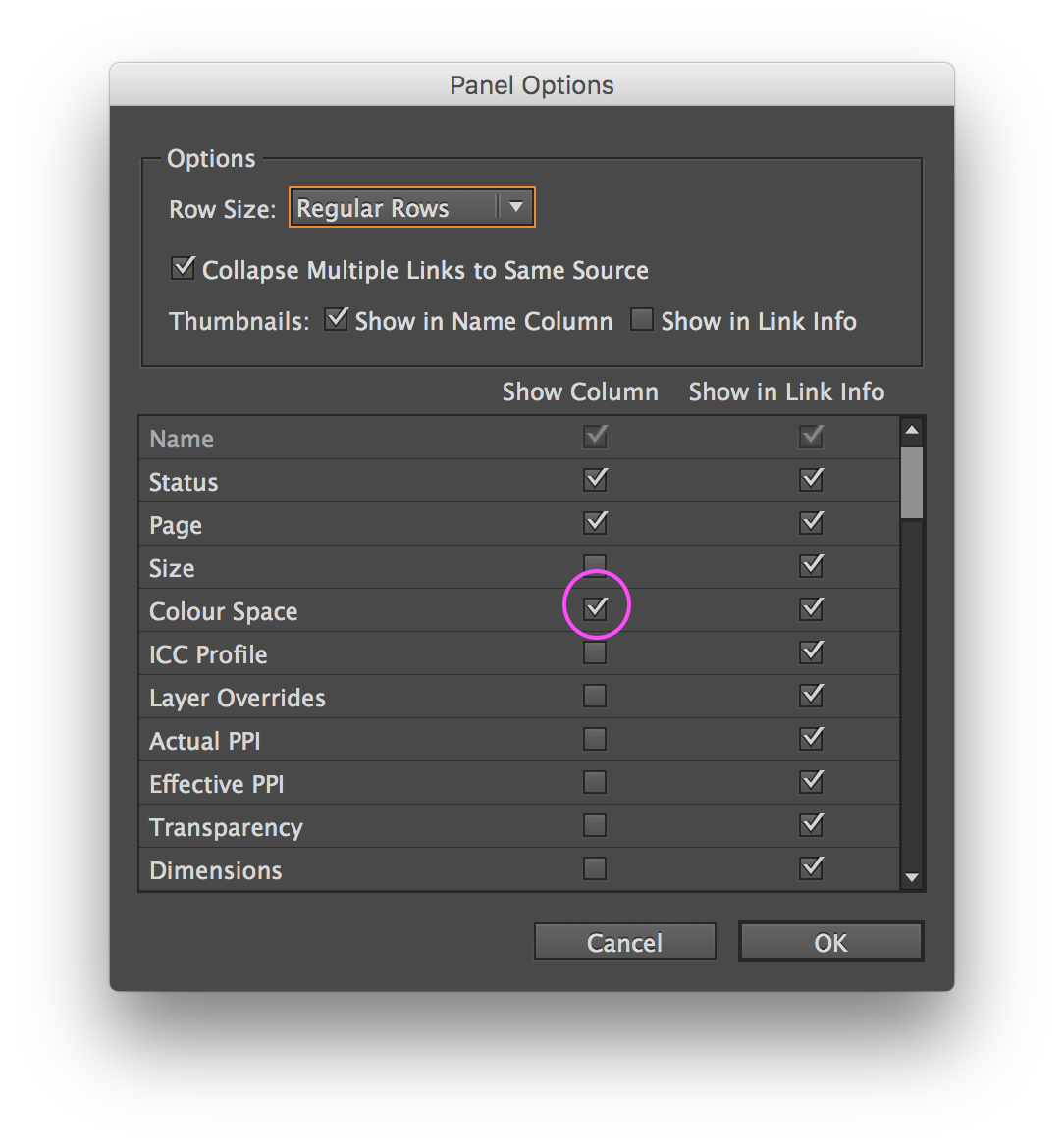

NB: Placed PDFs and Illustrator images cannot show a colour space in the Links panel as they may contain multiple colour spaces. However this GreenLight check will reveal if these placed image types contain any RGB components.
More from Adobe help on Working with Graphics Links in InDesign


